


Here’s how to add accordion menus to your Squarespace product detail pages.
How to add accessible Accordions to Squarespace product pages
a.
Squarespace
b.
Video
Introduction
Accordion menus are a great way to present product information in a clean, organized layout, letting customers view important details before they add items to their cart. Here’s how to add accordion menus to your Squarespace product detail pages.
Step 1: Start Adding Your Accordion Content
Go to Product Details
Begin by navigating to the product detail page where you want the accordion to appear. Look for the Description section—this is where you’ll add your accordion content.Create Accordion Titles
Start by entering the first title for your accordion menu. Make sure to format each title as Heading Four (H4) to ensure proper display and functionality.Add Content Under Each Title
After entering a title, press Enter and add the relevant text or details that you want to appear under that section. This will be the collapsible content associated with the title.Repeat for Additional Sections
Add any additional accordion sections by repeating the same process—enter the next title, format it as Heading Four, and add the relevant text beneath it. You can create as many accordion sections as you need.
Step 2: Adding Code for the Accordion Feature
Access the Accordion Code
We have a free accordion menu component available on our Creative Components page. Simply click the link provided in the video description to access it, and copy the code needed for your accordion.
Insert Code into Footer Injection Area
Go to the Injection Area in Squarespace. To find it, click the search icon and type “injection.”
In the footer injection area, paste the copied accordion code.
Apply Custom CSS
Copy the custom CSS provided on the Creative Components page.
Access the Custom CSS Area by searching for “CSS” in Squarespace.
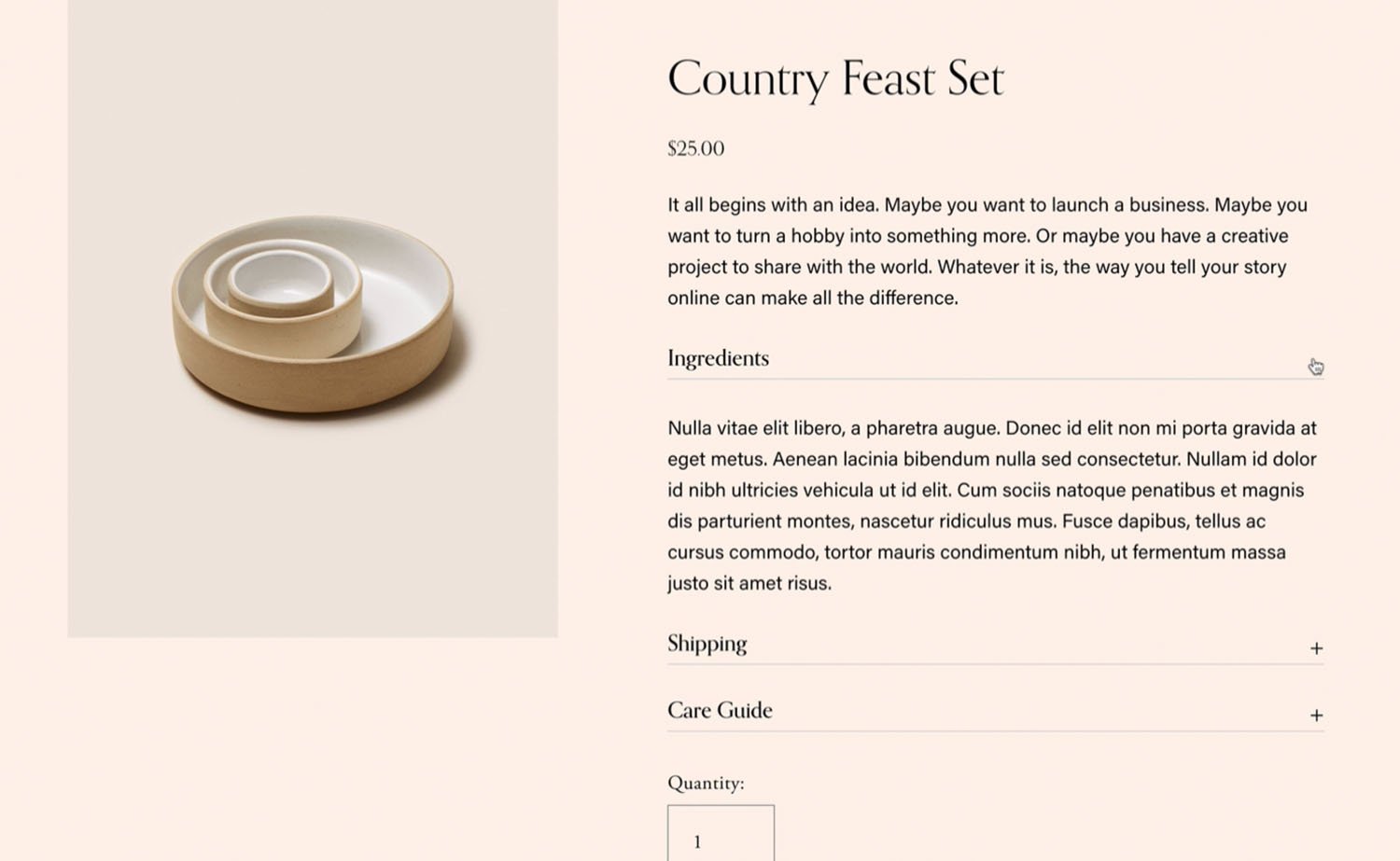
Ensure that potential customers are aware of relevant product details before they click the “Add to Cart” button. This free accordion menu for Squarespace product detail pages allows you to organize product text information in accordions.
Support
Our free components are not eligible for installation support. If you need assistance, please consider hiring website design experts from our Standout program or purchase a Setup Support Pass.
Attribution
Our free components and licensed for use in unlimited websites. With every use, please credit us by tagging our account (@squarestylist) on social media or linking back to our site. Visit this page for more info.
Get Free Access
Step 3: Save and Test Your Accordion Menus
Once the code is in place, save your changes and refresh the page to see the accordion menu in action. The titles should now expand and collapse as you click on them, neatly organizing the product information on your page.
Accessibility Features
These accordion menus are designed to be accessible for users who navigate with keyboards only. Customers can open and close each section using the Return key or Space bar, which is an essential feature for an inclusive web experience.
Additional Resources
If you’re interested in more stylish components or other solutions for your Squarespace or Shopify site, check out our Creative Components page for free resources. You can also subscribe to our channel to stay updated with new tutorials and resources.