

Stacked Side Summary Tabs
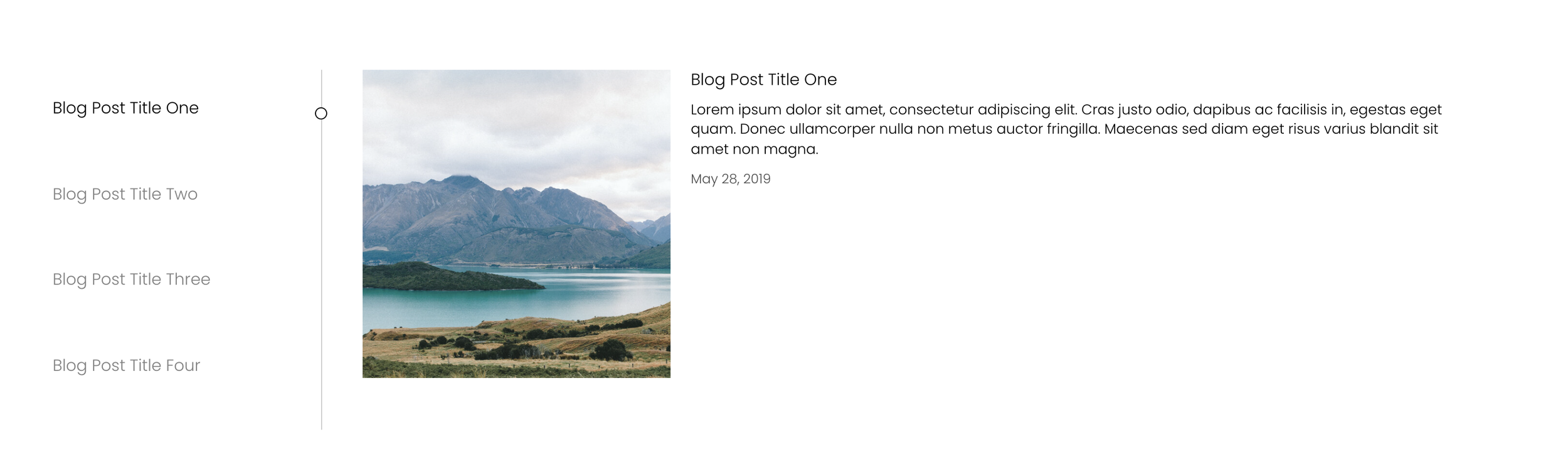
What You'll Create
A side-by-side tabs layout where navigation labels appear in a vertical list on one side and content displays on the other. Clicking a label reveals the corresponding panel with smooth transitions.
The Problem It Solves
Squarespace's Summary Block displays content in lists or grids, but not as tabbed interfaces. This technique transforms your Summary Block into professional side tabs that work great for portfolios, services, or any content that benefits from organized navigation.
Perfect For
Portfolio presentations, Service descriptions, Team bios, Product features, Case studies
What Makes This Different
This technique uses a slider library to handle the tab switching smoothly. Navigation labels are extracted from your blog titles and displayed vertically. When you click a tab, the corresponding image and content slides into view. Includes optional styling for bullet point indicators, font sizing, and active state highlighting.
Details
Section Type: Fluid & Classic
Code Type: CSS + JavaScript
Prerequisites: Summary Block with List design, Blog collection with 'tabs' in URL slug, jQuery and Slick.js libraries
Toolkit Title: Stacked Side Summary Tabs
Learn This Technique
This is one of 150+ code techniques taught inside Standout Squarespace, where you get:
The complete, copy-paste code
Video walkthrough explaining how it works
The principles behind the technique so you can customize it
Access to our private community for support