

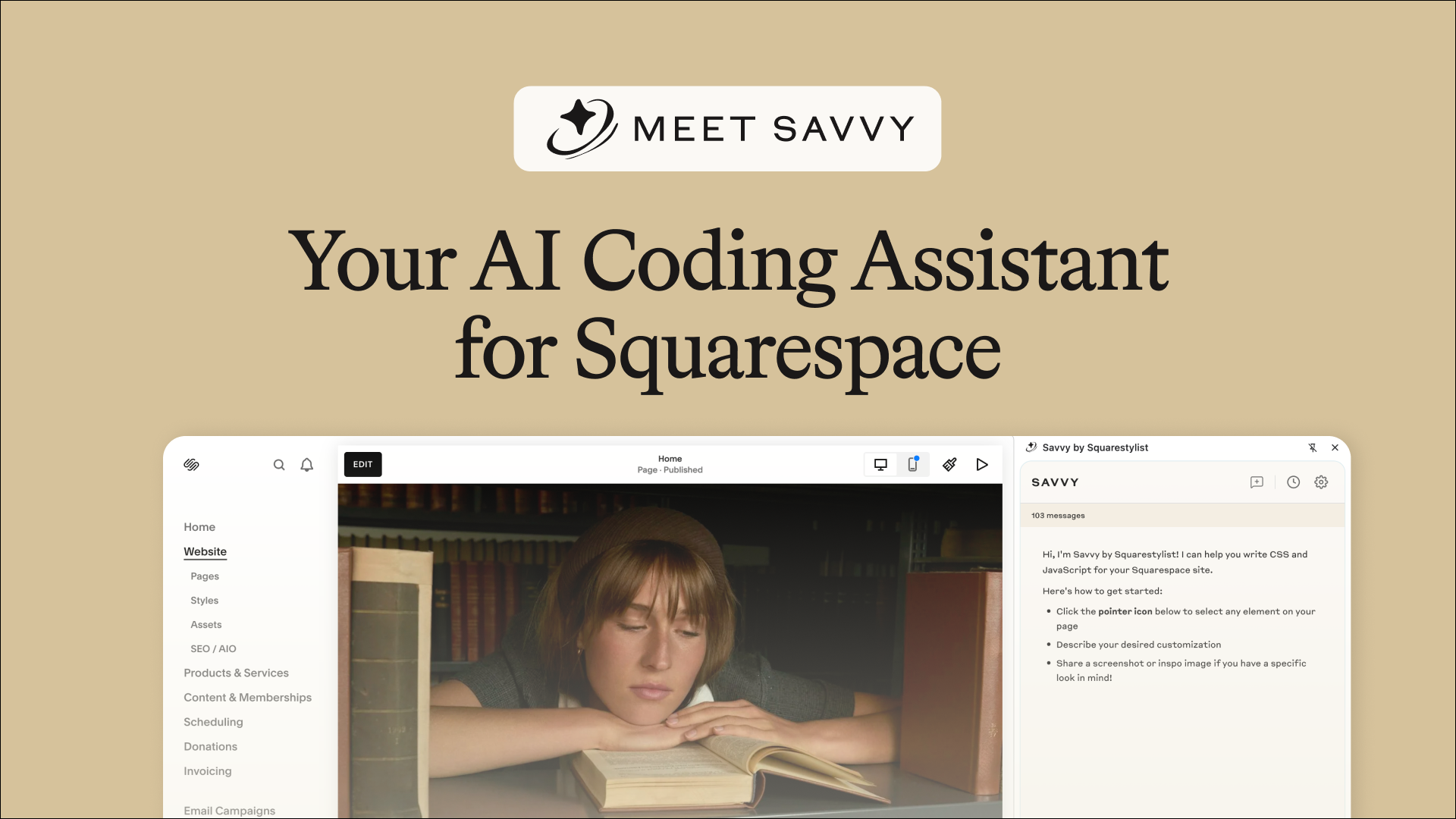
Meet Savvy: an AI code generator built specifically for Squarespace.
Introducing Savvy: Your Squarespace-Specific AI Coding Assistant
a.
Squarespace
b.
Video
You've probably heard that building websites is getting easier with AI. You’ve tried using ChatGPT, Claude, or Gemini—maybe you even pasted their code into Squarespace and… it didn’t work.
That’s because most AI tools aren’t built with Squarespace in mind. They don’t understand the platform’s unique element structures, code patterns, or best practices.
That’s exactly why I built Savvy—an AI coding assistant built specifically for Squarespace.
What Is Savvy?
Savvy sits right beside your Squarespace website. It lets you:
Click directly on any element on your site
Upload reference images for customizations
Generate accurate, context-aware code tailored to your Squarespace site
Visit squaresavvy.com to get started.
Getting Started with Savvy
1. Sign Up
Head to the landing page and click “Start for Free.” If you're a standout Squarespace member, make sure to sign up using the same email you use for the Standout Squarespace community.
2. Confirm Your Email
After creating your account, check your inbox (and spam folder!) for a confirmation email. Click Confirm Email to access your Savvy dashboard.
3. Install the Chrome Extension
Click the “Add Chrome Extension” button in the dashboard. Once it's added, pin it in your browser for easy access.
Now, on any Squarespace site, you can activate the extension and use Savvy's powerful features.
Using Savvy to Customize Your Squarespace Site
Savvy needs to understand which element you're working with—so the first step is always to use the pointer tool at the bottom-left of the Savvy panel. Once it's active (turns gold), hover over your site, and click the element you want to modify.
Here’s a walkthrough of what you can do:
Add a Border to an Image
After selecting an image, just type:
“Add a border to this image.”
Savvy considers Squarespace’s quirks (like how images are set to fit) and generates the correct CSS. Copy the code, open the CSS panel (/ > type “CSS”), and paste it in. You might need to preview in a no-redirect browser (?noredirect at the end of the URL) to see the effect.
Want rounded corners? You can ask Savvy—or just use the built-in image block options.
Bonus: Savvy uses Squarespace variables like --paragraphMediumColor so your customizations respond to your theme settings. You can always swap in a hex code if needed.
Custom Bullet Points with SVG Icons
Want more on-brand bullet points? Select your text block and say:
“Change default bullet points to a custom graphic.”
Savvy will guide you through:
Removing default bullets
Adding custom SVGs (just right-click > "Copy as SVG")
Pasting the new code and previewing the result
You’ll get a clean, branded bullet list. You can even tweak the icon size, color, and alignment.
Add Hover Captions to Gallery Sections
Visual customizations are often best explained with images. You can:
Paste in a screenshot or reference image (Figma or Adobe XD works great)
Describe your goal—e.g.
“I’d like the gallery caption to appear on hover like this image.”
Savvy will generate code scoped only for desktop (since hover doesn’t work well on mobile). Paste the code into your custom CSS panel, and you’ll see the caption reveal beautifully on hover.
To reuse this across multiple gallery sections:
Edit the section settings and add an anchor link ID, like
gallery-hoverUse the updated code Savvy provides
Save the section, and reuse it on other pages
Add Estimated Reading Time to Blog Posts
Select your blog post block and ask:
“Add estimated reading time below the blog title.”
Savvy will provide:
JavaScript code (paste in Code Injection > Footer)
CSS code (paste in the CSS panel)
It calculates based on 200 words per minute and displays a message like “1 minute read.”
A Reminder: AI Isn’t Perfect
While Savvy is trained on Squarespace-specific best practices, it’s still AI. It doesn’t have access to all your custom CSS or JS, so sometimes it’ll get you 90% of the way there—and you’ll need to apply your coding knowledge to finish the job.
For example, say you want to change a blog’s “Read More” link to say “View Project”:
Select the block
Ask: “Change Read More to View Project”
Savvy will give you CSS to paste
If there’s an issue (e.g. strikethrough text), you may need to inspect elements manually to troubleshoot
This is where your coding foundations come in.
Help Improve Savvy
Within the chat history, you can:
Rename conversations for future reference
Click the three dots (
⋯) to share feedback
When you do this, the entire conversation is shared with me. This helps me train Savvy even better.
Feel free to share your wins, too! What you’re building, what you love—it fuels continued improvement of the tool. You can also visit the Support menu on the dashboard for more resources.
Savvy is here to empower you to take control of your Squarespace customizations—without the guesswork. It’s visual, context-aware, and continuously improving.
But remember: AI is only as good as the questions we ask. Your creativity and coding foundation are the keys to unlocking its full power.
Can’t wait to see what you build with Savvy.