

Vibe Code in Squarespace
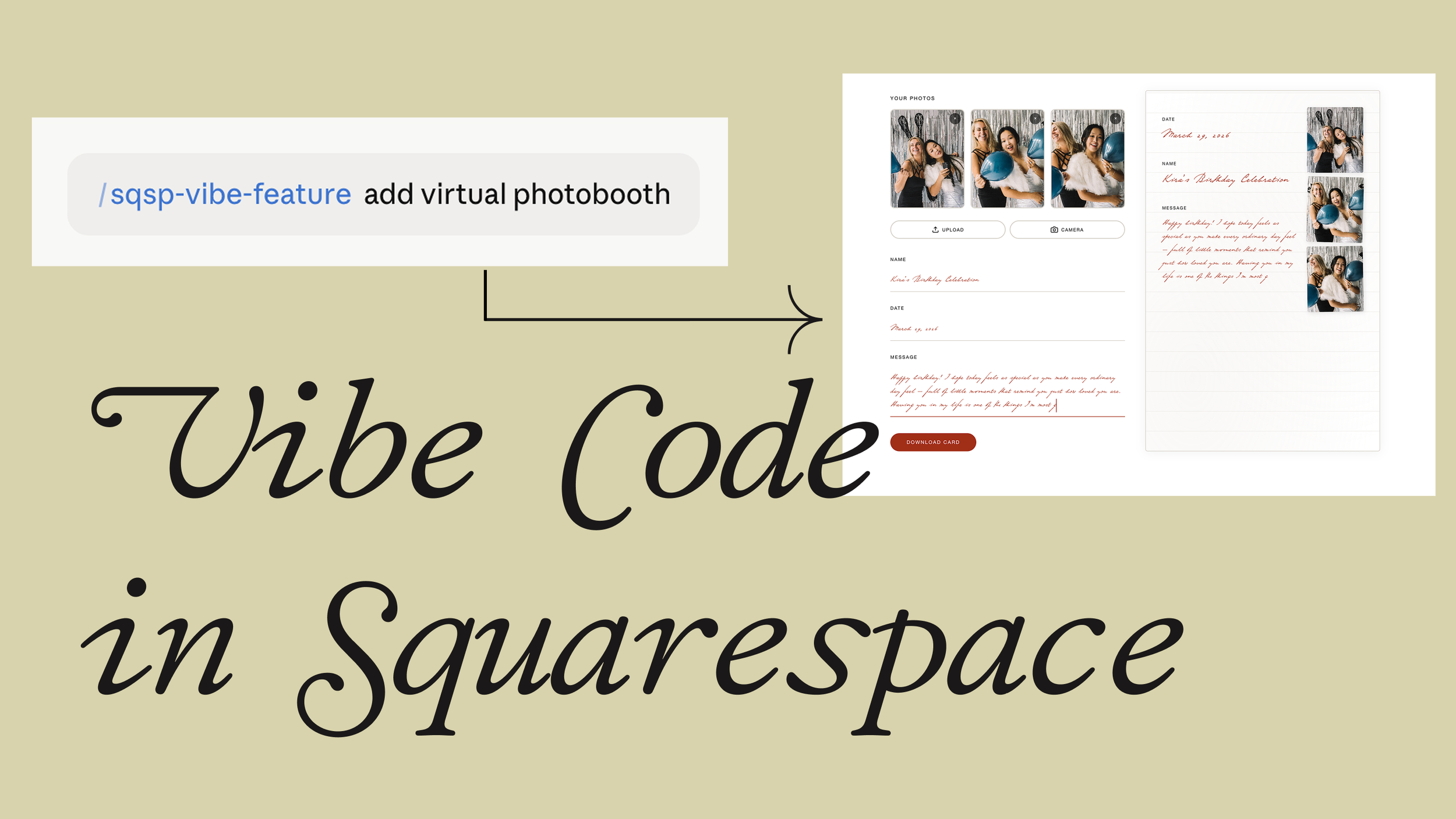
Imagine if you can add fun and interactive features to your Squarespace website
Vibe code in squarespace
a.
Squarespace
b.
Video
Vibe Code in Squarespace: Add Fun & Interactive Features Using Claude Skills
Imagine What's Possible on Your Squarespace Site [00:00]
Imagine if you can add fun and interactive features to your Squarespace website, for example:
An online virtual photo booth where users can snap pictures of themselves and download that as a keepsake
A 3D global locator like this one
A sketch canvas where users can draw anything and download it
What's great is they are safe and compatible to be added to any Squarespace website — like this quiz — which doesn't require any app or any ongoing costs.
More so, designers and clients can easily edit the properties of these features using this visual editor.
How It Works: Leveraging Claude Skills [00:39]
The way this works is by leveraging a game-changing feature of Claude called skills. Skills are pre-packaged instructions for specialized tasks.
So what I did is to create a specific skill just for creating fun and interactive features that are compatible and safe to add to any Squarespace site.
Uploading the Skill [01:01]
All we need to do is:
Click the Customize tab in the side menu
Under Skills, simply upload the skill file
Once uploaded, we may now use the skill for creating these features
Using the Skill to Create a Feature [01:13]
So we'll start typing forward slash sqsp vibe feature, and from here, we can simply describe what we want to be added to our Squarespace website.
Example: Build Your Own Package Feature [01:27]
For example, if I'd like to add a build your own package feature such that customers can estimate the cost of particular services, the prompt can be as simple as this — because the skill is already pre-packaged with instructions.
Once we initiate this, our skill will come up with some relevant questions. We may answer them in detail. In my case, I created a mock-up in Figma and I can simply take a screenshot of this. So we'll:
Answer these questions concisely
Upload our mock-up from Figma
Then it will start creating the artifact right here — just a preview of what our feature would look like. You may prompt further to make any changes, and we can now add it to our Squarespace website.
Responsive to Global Changes [02:18]
And what's created is also responsive to any global changes. For example, if we wish to change the color of the background, this responds accordingly.
Adding a Visual Editor for Clients [02:30]
Then if you wish to have an option for your clients to be able to edit the details of this feature even after project hand-off, then we can simply prompt this to add a visual editor that allows us to change:
Texts
Hourly rate
Locations
Other properties that you wish
It will then come up with an updated code with the visual editor. Once we add the updated code, we'll now have access to this visual editor settings that gives us access to these properties.
So, for example, I can make changes to the labels, and these changes will be reflected accordingly.
So Many More Features You Can Build [03:05]
There's so many more features that we can achieve using this method, like:
This 3D global store
This interactive drawing canvas
Or even an online photo booth
Standout Squarespace Pop-up activity
I shared the exact method and skill file to create these features in a limited-time pop-up activity in our Standout Squarespace program.
The camp ran from May 16 to June 16, 2026. If you wish to be updated about future camps on AI for designers, subscribe to our mailing list →