

Simple Border Styling for Image Blocks
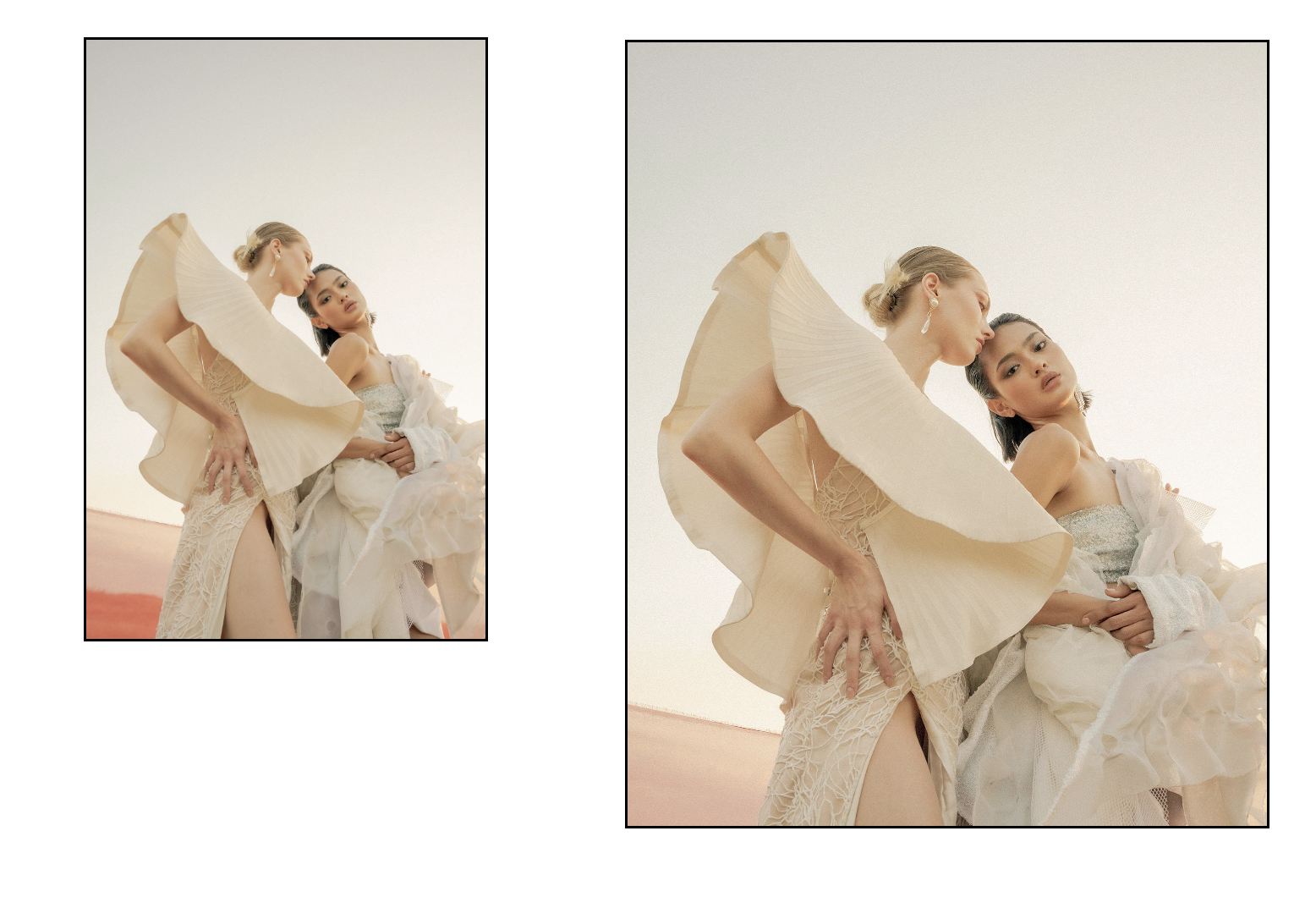
What You'll Create
Simple, clean border styling for your image blocks. Add subtle frames around images using your site's existing color scheme for a polished, cohesive look.
The Problem It Solves
Squarespace's image blocks don't have built-in border options. The Design panel doesn't offer a simple way to add frames around images. If you want that editorial, framed look, you'd normally need to edit images externally or create workarounds with shape blocks.
Perfect For
Portfolio image grids, Blog post featured images, About page photos, Team member headshots, Product showcases
What Makes This Different
This technique adds borders to your image blocks that automatically use your site's paragraph text color—so they match your design without extra configuration. You can apply borders to all images site-wide, or selectively target specific images by adding a keyword to their alt text. Works with both "Fit" and "Fill" image modes in Fluid Engine sections.
Details
Section Type: Fluid Engine
Code Type: CSS
Prerequisites: Fluid Engine image blocks
Toolkit Title: Image Borders
Learn This Technique
This is one of 150+ code techniques taught inside Standout Squarespace, where you get:
The complete, copy-paste code
Video walkthrough explaining how it works
The principles behind the technique so you can customize it
Access to our private community for support