

Summary Block Multi-Column Text Layout
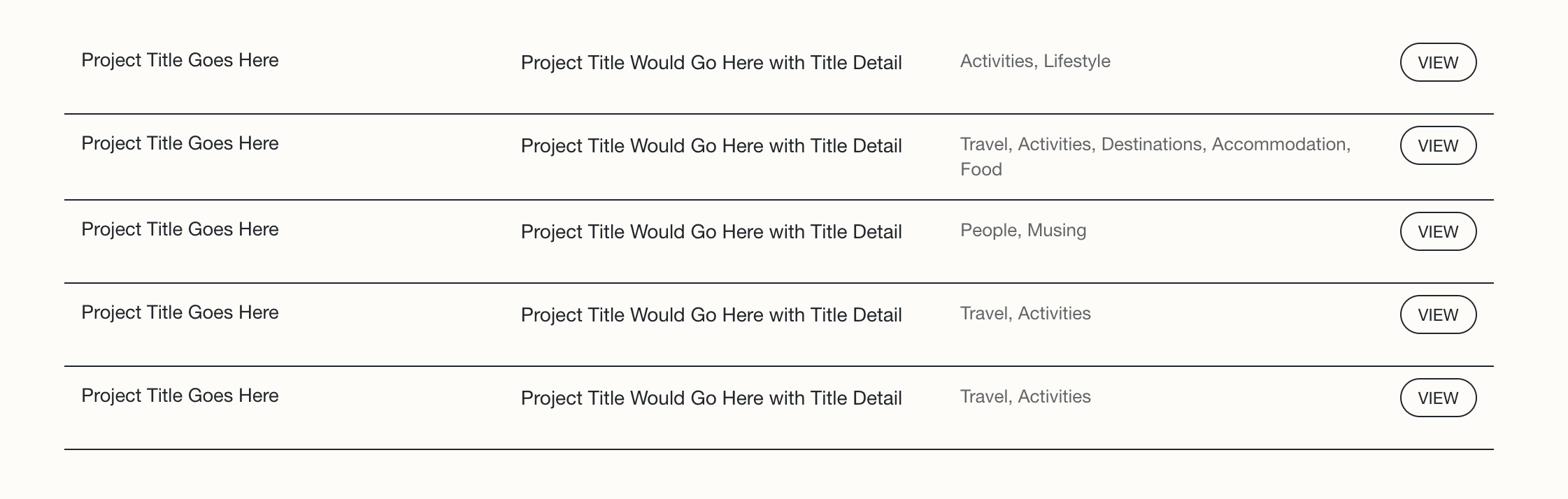
What You'll Create
Summary Block items in Squarespace with content split into organized columns—title, excerpt, and categories displayed side-by-side. The read more link transforms into a styled button positioned to the right, with clean borders between items. Everything collapses gracefully to a single column on mobile.
The Problem It Solves
Summary Blocks display content vertically by default: thumbnail, title, excerpt, categories stacked on top of each other. When you want a table-like layout where each piece of metadata has its own column, CSS is required. This technique reorganizes Summary Block content into a horizontal, scannable format.
Perfect For
News or press listings with structured metadata, resource libraries with categorized content, team pages with role and bio columns, event schedules with date, title, and details, any Summary Block needing tabular presentation.
What Makes This Different
Gives each content element equal width in a horizontal layout. The read more link gets repositioned to the right side and styled as a pill button. Border styling on items creates visual separation, and responsive breakpoints ensure mobile usability with automatic collapse to single column.
Details
Section Type: Classic
Code Type: CSS
Prerequisites: Summary Block with list design. Blog collection showing title, excerpt, and categories.
Toolkit Title: Summary Block Text Columns
Learn This Technique
This is one of 150+ code techniques taught inside Standout Squarespace, where you get:
The complete, copy-paste code
Video walkthrough explaining how it works
The principles behind the technique so you can customize it
Access to our private community for support